




Physics-driven character, vehicle, drone, and custom-gravity controllers for React Three Fiber and Rapier.
Ecctrl is a modular controller toolkit for custom-gravity worlds, ShapeCast characters, torque-driven cars, thrust-driven drones, touch controls, runtime animation states, and editable physics curves.

Explore Ecctrl at ecctrl.app.
This is the best way to test the character controller, custom gravity, cars, drones, touch controls, time control, and tuning tools before adding Ecctrl to your project.
- Full docs: API and configuration guide
- Discord: Ecctrl discussion channel
- Related project: BVHEcctrl, BVHEcctrl demo
- Author: GitHub, X / Twitter, Website
- Live Demo
- Install
- Quick Start
- Detailed Docs
- Why Ecctrl
- Highlights
- Module Imports
- Custom Gravity
- ShapeCast Character Controller
- Animation State
- Vehicle System
- ShapeCast Wheels
- Propeller Drones
- Curve LUTs
- Leva Curve Editor
- Time Control
- Touch Input
- Performance Notes
- Support
- Contributing
- Roadmap
- Local Development
- License
npm install ecctrlPeer dependencies:
npm install three react react-dom @react-three/fiber @react-three/rapierOptional packages:
npm install @react-three/drei leva@react-three/drei is only needed for helpers such as KeyboardControls and camera tooling. If you do not use Drei, you can still drive controller input through refs or stores and build your own camera follow logic. leva is only needed if you want the visual curve editor or debug panels.
This is the smallest useful ShapeCast character setup:
import { KeyboardControls } from "@react-three/drei";
import { Physics } from "@react-three/rapier";
import { Ecctrl } from "ecctrl";

const keyboardMap = [
  { name: "forward", keys: ["ArrowUp", "KeyW"] },
  { name: "backward", keys: ["ArrowDown", "KeyS"] },
  { name: "leftward", keys: ["ArrowLeft", "KeyA"] },
  { name: "rightward", keys: ["ArrowRight", "KeyD"] },
  { name: "jump", keys: ["Space"] },
  { name: "run", keys: ["Shift"] },
];

export function CharacterScene() {
  return (
    <Physics>
      <KeyboardControls map={keyboardMap}>
        <Ecctrl>
          <CharacterModel />
        </Ecctrl>
      </KeyboardControls>
    </Physics>
  );
}
For custom gravity scenes, set Rapier gravity to [0, 0, 0] and let Ecctrl apply gravity per body:
<Physics gravity={[0, 0, 0]}>
  <Ecctrl enableCustomGravity>
    <CharacterModel />
  </Ecctrl>
</Physics>The README gives the main concepts and common setup paths. Full prop tables, config defaults, handle output, input shapes, and tuning notes are available in the detailed docs:
Ecctrl is built for games and simulations where controlled objects need to behave like part of the physics world.
The character floats with spring and damping, pushes back on the object below, follows moving platforms, aligns with custom gravity, and exposes runtime state for animation and gameplay logic. Ecctrl keeps that physics-driven direction and extends it into cars, drones, touch input, time control, and editable curve-driven behavior.
| Feature | What it gives you |
|---|---|
| Custom gravity | Position-based gravity fields shared by characters, vehicles, drones, and custom rigid bodies |
| ShapeCast character | Stable floating support, accurate standing points, gap handling, slope checks, and optional RayCast mode |
| ShapeCast wheels | Torque-driven wheel simulation with editable longitudinal and lateral slip curves |
| Propeller drones | Thrust and reaction torque are mixed per propeller for stabilized velocity or position flight |
| Curve LUTs | Runtime-cheap curve sampling for grip, engine torque, steering, and mass falloff |
| Leva curve editor | Optional draggable curve editor for tuning points, tangents, and weights |
| Time control | Pause and slow down the physics world for bullet-time style control |
| Touch controls | DOM-based joystick and virtual buttons that can be replaced by your own UI |
Ecctrl is split into subpath exports so you can import only the parts you need.
import { Ecctrl } from "ecctrl";
import { EcctrlVehicle, ShapeCastWheel, ThrustPropeller } from "ecctrl/vehicle";
import { Joystick, VirtualButton } from "ecctrl/input";
import { useCustomGravity } from "ecctrl/gravity";
import { EcctrlCameraControls } from "ecctrl/camera";
import { TimeControl } from "ecctrl/time";
import { EcctrlAnimationStateController } from "ecctrl/animation";
import { bakeCurveLUT, evaluateCurveLUT } from "ecctrl/curves";
import { CurveEditorPlugin } from "ecctrl/leva";
For prototypes or examples, you can also import everything from ecctrl/all.
Custom gravity is one of the main systems in Ecctrl.
Instead of relying only on Rapier's global gravity vector, Ecctrl can read a gravity field function and apply gravity per body. This makes it possible to build spherical gravity, cylindrical gravity, wall-walking zones, gravity tunnels, rotating gravity fields, or gameplay-specific attraction areas.
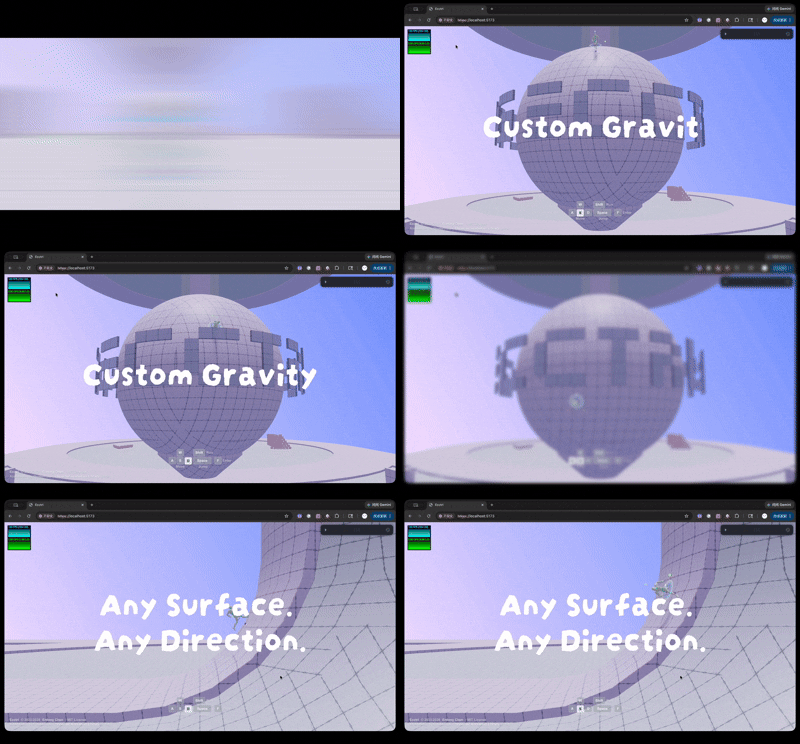
When Ecctrl applies custom gravity, set Rapier's global gravity to [0, 0, 0] so the global gravity force and custom gravity field do not stack.
import { useEffect } from "react";
import * as THREE from "three";
import { Physics } from "@react-three/rapier";
import { Ecctrl } from "ecctrl";
import { useCustomGravity } from "ecctrl/gravity";

const center = new THREE.Vector3(0, 20, 0);
const gravity = new THREE.Vector3();

function GravitySetup() {
  const setGravityField = useCustomGravity((state) => state.setGravityField);

  useEffect(() => {
    setGravityField((bodyPos) => gravity.subVectors(center, bodyPos).normalize().multiplyScalar(9.81));
  }, [setGravityField]);

  return null;
}

export function Scene() {
  return (
    <Physics gravity={[0, 0, 0]}>
      <GravitySetup />
      <Ecctrl enableCustomGravity>
        <CharacterModel />
      </Ecctrl>
    </Physics>
  );
}
For custom rigid bodies outside Ecctrl, call applyGravityField each frame:
import { useRef } from "react";
import { useFrame } from "@react-three/fiber";
import { RigidBody, useRapier, type RapierRigidBody } from "@react-three/rapier";
import { useCustomGravity } from "ecctrl/gravity";

function CustomGravityRigidBody() {
  const body = useRef<RapierRigidBody>(null);
  const { world } = useRapier();
  const applyGravityField = useCustomGravity((state) => state.applyGravityField);

  useFrame(() => {
    if (body.current) applyGravityField(body.current, world.timestep);
  });

  return <RigidBody ref={body} />;
}
For dynamic gravity, keep the field function stable and update refs that the function reads. This avoids React renders and Zustand updates on every frame.
const gravityStrength = useRef(9.81);
const gravityTarget = useRef(new THREE.Vector3(0, 20, 0));

useEffect(() => {
  setGravityField((bodyPos) => gravity.subVectors(gravityTarget.current, bodyPos).normalize().multiplyScalar(gravityStrength.current));
}, [setGravityField]);

useFrame(({ clock }) => {
  // Move the attractor without replacing the gravity field function.
  const t = clock.elapsedTime;
  gravityTarget.current.set(Math.sin(t) * 10, 20, Math.cos(t) * 10);
});EcctrlCameraControls extends Drei CameraControls with setUp(newUp). It does not automatically follow a character by itself; you still drive the follow target from your controller ref.
import { useRef } from "react";
import * as THREE from "three";
import { useFrame, useThree } from "@react-three/fiber";
import { Ecctrl, type EcctrlHandle } from "ecctrl";
import { EcctrlCameraControls } from "ecctrl/camera";
import type { EcctrlCameraControlsHandle } from "ecctrl/camera";

function SceneCamera() {
  const ecctrl = useRef<EcctrlHandle>(null);
  const cameraControls = useRef<EcctrlCameraControlsHandle>(null);
  const cameraUp = useRef(new THREE.Vector3());
  const { camera } = useThree();

  useFrame(() => {
    if (!ecctrl.current || !cameraControls.current) return;

    const target = ecctrl.current.currPos;
    cameraControls.current.moveTo(target.x, target.y, target.z, true);

    cameraUp.current.copy(ecctrl.current.upAxis);
    camera.up.lerp(cameraUp.current, 0.1);
    cameraControls.current.setUp(camera.up);
  });

  return (
    <>
      <Ecctrl ref={ecctrl}>
        <CharacterModel />
      </Ecctrl>
      <EcctrlCameraControls ref={cameraControls} makeDefault smoothTime={0.1} />
    </>
  );
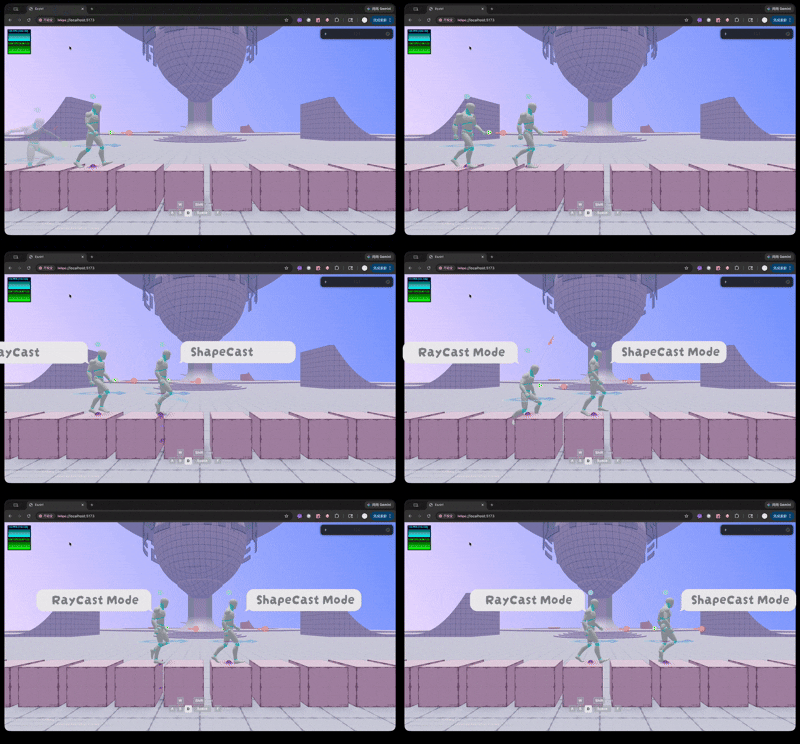
}The character controller now uses ShapeCast ground detection by default. RayCast mode is still available when you want the lowest possible detection cost.
For the minimum setup, see Quick Start.
ShapeCast mode gives the character a stronger ground signal than a single ray:
- More natural movement over gaps and small seams
- More accurate standing point and ground normal data
- One cast can drive floating, slope, and support detection
- Fallback center ray improves steep-slope and sharp-surface handling
- Optional
groundDetection="rayCast"mode for lower-cost scenes
<Ecctrl groundDetection="shapeCast" />
<Ecctrl groundDetection="rayCast" />The character can push back on the world instead of only moving itself:
- Standing applies counter mass to the supporting body
- Moving applies opposite impulse to the standing point
- Jumping applies downward impulse to the object below
- Moving and rotating platforms are followed smoothly
These behaviors are enabled by default. You can disable them when a scene needs simpler interaction:
<Ecctrl
  followPlatform={false}
  applyCounterMass={false}
  applyCounterMoveImp={false}
  applyCounterJumpImp={false}
/>EcctrlHandle exposes readonly runtime state for animation, gameplay logic, debug UI, or user-defined systems.
import { useRef } from "react";
import { useFrame } from "@react-three/fiber";
import { Ecctrl, type EcctrlHandle } from "ecctrl";

const ecctrl = useRef<EcctrlHandle>(null);

useFrame(() => {
  if (!ecctrl.current) return;

  const grounded = ecctrl.current.isOnGround;
  const speed = ecctrl.current.moveSpeed;
  const falling = ecctrl.current.isFalling;
});

<Ecctrl ref={ecctrl}>
  <CharacterModel />
</Ecctrl>
EcctrlHandle exposes more runtime values than the three shown here, including position, velocity, gravity direction, input state, and body axes. See the detailed docs for the full handle shape.
Ecctrl includes a lightweight animation state resolver. The controller writes the current state into useEcctrlAnimationStore; your model decides how to play, blend, or hold each animation clip.
Default states:
"IDLE" | "WALK" | "RUN" | "JUMP_START" | "JUMP_IDLE" | "JUMP_FALL" | "JUMP_LAND"Basic setup:
import { useEffect, useRef } from "react";
import { Ecctrl, type EcctrlHandle } from "ecctrl";
import { EcctrlAnimationStateController, useEcctrlAnimationStore } from "ecctrl/animation";
import { useAnimations, useGLTF } from "@react-three/drei";

const ANIMATION_MAP = {
  IDLE: "Idle",
  WALK: "Walk",
  RUN: "Run",
  JUMP_START: "Jump_Start",
  JUMP_IDLE: "Jump_Idle",
  JUMP_FALL: "Jump_Fall",
  JUMP_LAND: "Jump_Land",
} as const;

function AnimatedCharacterModel() {
  const group = useRef(null);
  const { scene, animations } = useGLTF("/character.glb");
  const { actions } = useAnimations(animations, group);
  const animationState = useEcctrlAnimationStore((state) => state.animationState);

  useEffect(() => {
    const action = actions[ANIMATION_MAP[animationState]];
    if (!action) return;

    action.reset().fadeIn(0.15).play();
    return () => action.fadeOut(0.15);
  }, [actions, animationState]);

  return (
    <group ref={group}>
      <primitive object={scene} />
    </group>
  );
}

function CharacterWithAnimation() {
  const ecctrl = useRef<EcctrlHandle>(null);

  return (
    <>
      <EcctrlAnimationStateController ecctrl={ecctrl} />
      <Ecctrl ref={ecctrl}>
        <AnimatedCharacterModel />
      </Ecctrl>
    </>
  );
}
For custom state mapping, pass a resolver:
import {
  EcctrlAnimationStateController,
  resolveEcctrlAnimationState,
  type EcctrlAnimationStateResolver,
} from "ecctrl/animation";

const resolver: EcctrlAnimationStateResolver = (ctx) => {
  if (ctx.handle.moveSpeed > 8) return "RUN";
  return resolveEcctrlAnimationState(ctx);
};

<EcctrlAnimationStateController ecctrl={ecctrl} resolver={resolver} />;
For fully custom animation graphs, skip the store and read EcctrlHandle directly in your animation system.
Ecctrl includes a vehicle controller that can be built from wheels, propellers, or both.
import { EcctrlVehicle, ShapeCastWheel } from "ecctrl/vehicle";
import { CuboidCollider } from "@react-three/rapier";

<EcctrlVehicle>
  <CuboidCollider args={[1, 0.5, 2]} />
  <ShapeCastWheel position={[1, 0, 1.5]} driveWheel steerWheel brakeWheel />
  <ShapeCastWheel position={[-1, 0, 1.5]} driveWheel steerWheel brakeWheel />
  <ShapeCastWheel position={[1, 0, -1.5]} driveWheel brakeWheel />
  <ShapeCastWheel position={[-1, 0, -1.5]} driveWheel brakeWheel />
</EcctrlVehicle>
EcctrlVehicle owns the body state, input state, custom gravity, and high-level control logic. Wheels and propellers register as modules, compute local wheel or propeller data, and feed the vehicle with the values it needs to apply impulses.
Driving input can come from keyboard controls, touch controls, AI, or your own code:
import { useRef } from "react";
import { useFrame } from "@react-three/fiber";
import { EcctrlVehicle, type EcctrlVehicleHandle, type VehicleInput } from "ecctrl/vehicle";

function VehicleInputExample({ input }: { input: VehicleInput }) {
  const vehicle = useRef<EcctrlVehicleHandle>(null);

  useFrame(() => {
    vehicle.current?.setMovement(input);
  });

  return (
    <EcctrlVehicle ref={vehicle}>
      {/* body collider and vehicle modules */}
    </EcctrlVehicle>
  );
}ShapeCastWheel is designed for physics-driven vehicle control.
The wheel receives drive torque, updates wheel angular velocity, evaluates slip through baked curves, then applies longitudinal and lateral grip impulses to the vehicle body.
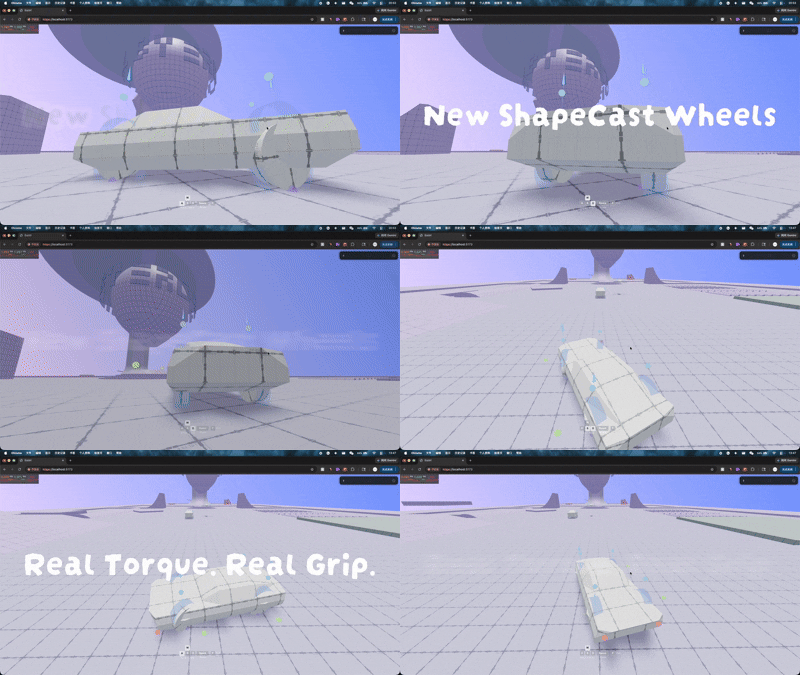
torque -> wheel speed -> slip -> grip -> impulse
Key features:
- ShapeCast wheel detection for wheel-like support
- Optional
groundDetection="rayCast"mode for maximum performance - Stable support point handling for suspension force
- Accurate contact, normal, slip, torque, RPM, and impulse data
- Drive, steer, brake, rolling resistance, and tire relaxation logic
- AWD, RWD, FWD, and weighted torque distribution
- Longitudinal and lateral grip curves through LUTs
- Low-speed stability and tire relaxation behavior
- Counter impulses for objects under the wheel
- Moving platform support
<ShapeCastWheel
  driveWheel
  steerWheel
  brakeWheel
  driveTorqueWeight={1}
  groundDetection="shapeCast"
  tireGripFactor={1.5}
/>Drive torque is distributed across registered drive wheels. Use driveTorqueWeight when one wheel should receive more or less drive torque.
<ShapeCastWheel driveWheel driveTorqueWeight={1.2} />
<ShapeCastWheel driveWheel driveTorqueWeight={0.8} />
If no weight is provided, every drive wheel receives an equal share.
The demo setup uses a simple motor-style fixed ratio. You can also provide a more combustion-engine-like setup with gear ratios, final drive, and automatic or manual transmission behavior.
<EcctrlVehicle
  carConfig={{
    engineHorsepower: 600,
    engineMaxRPM: 6000,
    gearRatios: [3.2, 2.1, 1.45, 1.0, 0.82],
    finalDriveRatio: 18,
    transmissionMode: "auto",
    shiftUpRPM: 5200,
    shiftDownRPM: 2200,
    shiftCooldown: 0.35,
  }}
/>
Manual gear selection can be driven through the vehicle ref:
vehicle.current?.setGear(2);The vehicle ref also exposes gearIndex, driveRatio, and engineRPM for UI or custom logic.
Longitudinal and lateral tire behavior use separate LUT curves, so acceleration/braking grip and side grip can be tuned independently. Low-speed stabilization and tire relaxation are included to keep the result stable and smooth instead of twitchy at rest or during transitions.
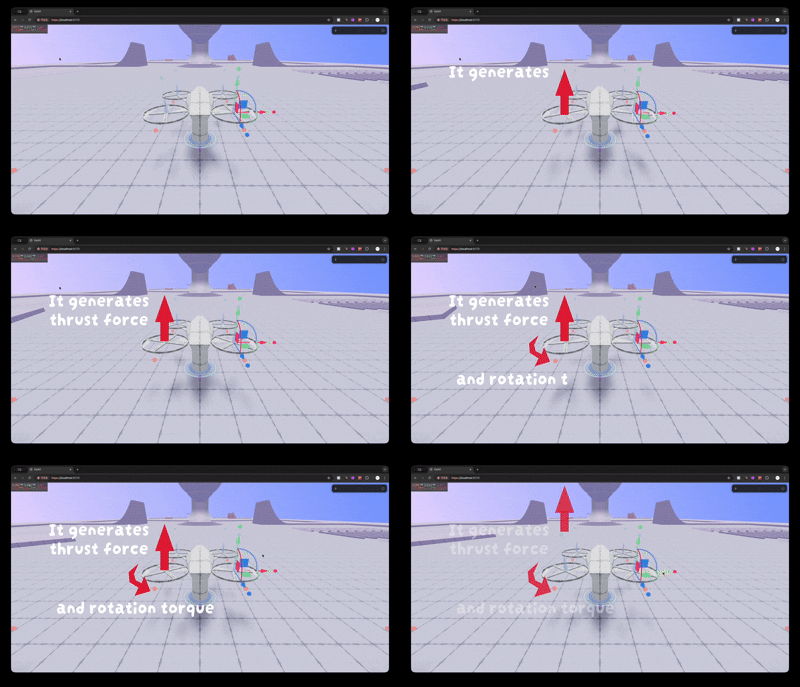
ThrustPropeller is the drone motor module. Each propeller registers its thrust and torque setup with EcctrlVehicle; the vehicle controller works as the flight brain, mixes throttle, and lets each propeller apply real thrust and reaction torque instead of directly setting body velocity or rotation.
import { EcctrlVehicle, ThrustPropeller } from "ecctrl/vehicle";
import { CuboidCollider } from "@react-three/rapier";

<EcctrlVehicle
  droneConfig={{
    controlMode: "POSITION",
    maxHorizSpeed: 20,
    maxVertSpeed: 8,
    maxTiltAngle: Math.PI / 4,
  }}
>
  <CuboidCollider args={[0.6, 0.15, 0.6]} />
  <ThrustPropeller position={[1, 0, 1]} />
  <ThrustPropeller position={[-1, 0, 1]} invertTorque />
  <ThrustPropeller position={[1, 0, -1]} invertTorque />
  <ThrustPropeller position={[-1, 0, -1]} />
</EcctrlVehicle>
Key features:
- Per-propeller thrust impulse
- Per-propeller reaction torque impulse
- Throttle mixing handled by
EcctrlVehicle maxThrust,torqueRatio,invertThrust, andinvertTorqueper propeller- Custom gravity support through the same vehicle gravity system
- Optional propeller model spin update and debugger arrows
Drone control modes:
| Mode | Behavior |
|---|---|
VELOCITY |
Manual velocity-style flight. Input maps to target horizontal, vertical, yaw, pitch, and roll behavior while the controller stabilizes the body. |
POSITION |
Position-targeted flight. The controller computes output from target position and direction, then stabilizes tilt, yaw, and vertical movement. |
Ecctrl uses baked curve lookup tables for runtime performance. Curves can shape grip, torque, steering, mass-ratio falloff, and other controller responses.
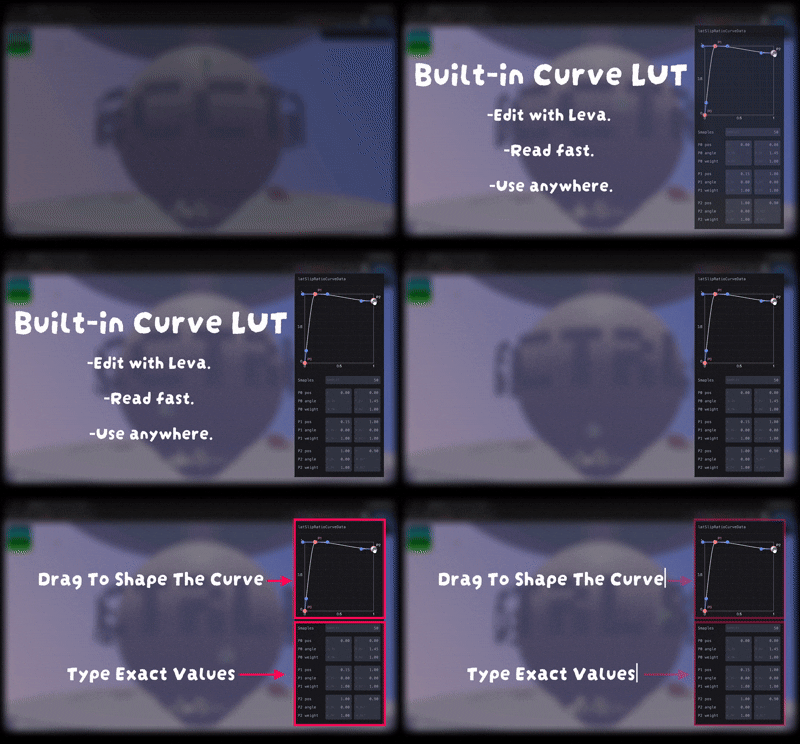
Bake a curve once, then sample the LUT with a normalized input value at runtime:
import { useMemo } from "react";
import { useFrame } from "@react-three/fiber";
import { bakeCurveLUT, evaluateCurveLUT } from "ecctrl/curves";

const gripCurve = useMemo(
  () => bakeCurveLUT([
    { x: 0, y: 0, r_out: 1.45, w_out: 1 },
    { x: 0.25, y: 1, r_in: 0, r_out: 0, w_in: 1, w_out: 1 },
    { x: 1, y: 0.7, r_in: 0, w_in: 1 },
  ], 50),
  []
);

useFrame(() => {
  const grip = evaluateCurveLUT(slipRatio.current, gripCurve);
});
Curve data supports position, incoming/outgoing tangent ratios, and tangent weights. Runtime sampling reads from the baked LUT, so per-frame curve evaluation stays cheap.
CurveEditorPlugin is optional. It gives Leva a draggable curve editor for tuning curve points and tangents visually.
import { useControls } from "leva";
import { CurveEditorPlugin } from "ecctrl/leva";

const { engineTorqueCurveData } = useControls("Car Control", {
  engineTorqueCurveData: CurveEditorPlugin({
    points: [
      { x: 0, y: 1, r_out: 0, w_out: 1 },
      { x: 1, y: 0, r_in: 0, w_in: 1 },
    ],
    samples: 50,
  }),
});

<EcctrlVehicle carConfig={{ engineTorqueCurveData }} />;
You can drag points, drag tangents, or type exact values. If leva is not installed, Ecctrl can still use plain curve data and baked LUTs.
TimeControl manually steps Rapier. This is useful for pause, slow motion, bullet time, and deterministic example controls.
Set <Physics paused> and let TimeControl step the world:
import { Physics } from "@react-three/rapier";
import { TimeControl } from "ecctrl/time";

const timeScale = useRef(1);

<Physics paused gravity={[0, 0, 0]}>
  <TimeControl timeScale={timeScale} maxDelta={1 / 30} />
</Physics>
timeScale can be a number or a ref. Ref values are useful when the value changes often and you want to avoid React renders.
Ecctrl uses DOM-based touch controls. You can use the built-in joystick and virtual buttons, connect to the exported stores, or build your own UI.
import { Joystick, VirtualButton } from "ecctrl/input";

<>
  <Joystick />
  <VirtualButton id="jump" label="Jump" />
  <VirtualButton id="enter" label="Enter" />
</>
The built-in UI is just a DOM overlay. You can replace it completely and drive the same input stores yourself:
import { useButtonStore, useJoystickStore } from "ecctrl/input";

useJoystickStore.getState().setJoystick(x, y);
useButtonStore.getState().setButtonActive("jump", true);
You can also bypass the stores and drive a controller directly through its ref:
ecctrl.current?.setMovement({ forward: true, jump: false });
vehicle.current?.setMovement({ forward: true, steerLeft: true });Ecctrl is built around runtime-friendly patterns:
- Controller state is stored in refs where possible
- Curve data is baked into LUTs before per-frame sampling
- ShapeCast and RayCast modes can be selected per controller
- Leva and debug tools are optional
- Subpath exports avoid importing systems you do not use
- Dynamic gravity can read refs instead of updating React or Zustand every frame
For larger scenes, start with ShapeCast for behavior and switch selected characters or wheels to RayCast when you need the lowest detection cost.
Thanks to everyone who has tested Ecctrl, reported issues, shared feedback, contributed code, or supported the project.
Ecctrl is MIT-licensed, so commercial use is allowed. If Ecctrl helps your project, sponsorship is welcome and directly supports continued development.
For commercial projects, integration help, controller tuning, and custom physics-controller work are available by arrangement.
Issues, bug reports, feature requests, tuning feedback, examples, docs improvements, and pull requests are welcome.
When reporting controller behavior, include the Ecctrl version, Rapier/R3F versions, a small reproduction if possible, and any relevant controller props. For vehicle tuning issues, screenshots or short clips are especially useful because wheel contact, suspension, and grip behavior are highly visual.
- Car position-based control for driving toward a target, with obstacle avoidance considered after the base controller is stable.
- Fully manual drone mode without self-balancing.
- Two-wheel vehicle mode with self-balancing and steering lean.
- More character abilities, such as double jump, air dash, swimming, wall climb, and wall kick jump.
- More vehicle types and tuning presets.
- Multiplayer demo examples.
- More complete documentation, recipes, and live examples.
npm install
npm run dev
npm run typecheckMIT License.
Created by Erdong Chen.